Introduction to GitHub Copilot
GitHub Copilot is an AI-powered coding assistant developed by GitHub in collaboration with OpenAI, designed to transform the way developers write and maintain code. By leveraging advanced machine learning models trained on vast amounts of publicly available code, Copilot provides real-time, context-aware suggestions directly within your development environment.
Whether you’re writing simple functions or complex logic, Copilot can generate code snippets, recommend completions, and even help structure entire workflows based on natural language prompts. It integrates seamlessly with popular editors like Visual Studio Code and PyCharm, making it a natural extension of a developer’s toolkit.
More than just an autocomplete tool, GitHub Copilot acts as a collaborative partner helping developers save time, reduce repetitive work, and focus on solving meaningful problems. As AI continues to evolve, tools like Copilot are redefining productivity and setting new standards for modern software development.
Importance of AI in Automation Testing
AI reduces repetitive work in automation testing. GitHub Copilot helps generate test scripts, suggest assertions, and improve productivity. By using GitHub copilot in automation testing, you can create a complete automation framework in minutes by providing just a few lines of prompt in simple language.
GitHub Copilot plays a crucial role in enhancing automation testing by leveraging advanced AI models trained on vast code repositories to deliver intelligent, context-aware suggestions. It significantly speeds up the creation of boilerplate code, making it easy to set up test fixtures, page objects, and drivers. At the same time, it helps generate well-rounded test cases, covering edge scenarios, data-driven inputs, and meaningful assertions.
In addition to improving speed, Copilot promotes better code quality by recommending best practices, cleaner refactoring approaches, and effective mocking techniques for dependencies. It also reduces the mental effort required during test development, allowing testers to focus more on strategy and logic while the AI assists with structure and syntax. Its smooth integration with PyCharm through inline suggestions, Copilot Chat, and intuitive actions further enhances the overall development experience.
As a result, teams often see substantial productivity improvements, with test creation becoming significantly faster when guided by well-crafted prompts. However, human oversight remains essential to ensure correctness, reliability, and alignment with domain-specific requirements.
Using Copilot for Code Generation
Copilot has a feature called code generation. It means that it allows you to generate code without even writing a single line of code by just providing very meaningful and precise prompt having proper information about what you want to achieve with that code.
Now when it comes to writing automation test cases, we can create a prompt like below to write a test case by creating a whole automation framework.
Example Prompt
For example, if we need to automate the login scenario, provide all the steps with details like the example below.
Generate an automation framework using python, pytest. Also create a sample test case with the steps mentioned below.
Test Scenario:
Navigate to desired URL
Click on the “Log In” link in the top navigation bar.
Enter [username] in the username field.
Enter the [password] in the password field.
Click on the “Log In” button.
Verify that the “Log out” link is visible.
Verify that the text “Welcome [username]” appears at the top right of the page.
Click on “Log out” link.
Verify that the “Log In” link is visible again after logging out.
Implementation Requirements:
Apply the page object model (POM) design pattern for page structure and element management.
Save all page object files inside [automation_repo_name]/pages directory
Save test file inside [automation_repo_name]/tests directory.
Follow the pytest style convention (functions starting with test_)
Copy and paste above prompt into copilot chat box and hit enter and allow the permissions or click on continue whenever copilot asks for and wait until process is finished and you will see that it will create requirement.txt with help of which it will install required dependencies and then created pages folder in which it created page classes as we mentioned in prompt and then it created tests folder in which it created test file again as we mentioned explicitly in prompt.
Execution and auto healing
Once everything is done, it will also ask to execute code using pytest and once you allow, it will execute that test and it will fix code if there are any issues with the locators or in test steps assertions.
Using Copilot for Code Completion
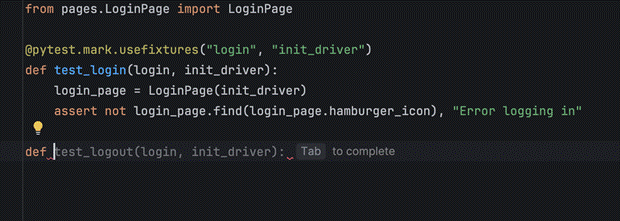
Once Copilot is installed, whenever you are trying to write a code, Copilot will suggest you the code and once you press tab, it will auto complete entire test case on the go, which will increase productivity while developing automation tests and you can achieve your tasks in minimum type and effort.
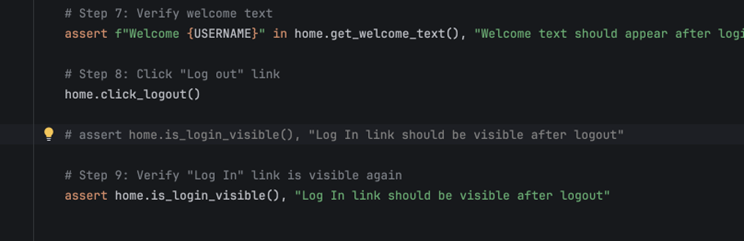
Also, you can start typing whatever you want in the file using the comment, and there also copilot will suggest you code based on the comment you are writing, and you can use that auto generate code as well.
Using Copilot to Fix Test Cases
- If there is any error in code, right click on the line showing error and go to Github Copilot menu option and click on “fix this” to fix that line of code in tests.
- Also, if any tests are failing currently due to may be locator issue or assertion or locator availability/visibility issue, you can select whole test and click on fix this, it will try to fix that test case and then will ask you if you want to keep those changes or not and you can execute it and decide if you want to keep that change or revert it to older one.
Best Practices for Using Copilot in Test Automation
1. Write Clear Comments
Copilot relies heavily on context. The clearer your comments, the better the suggestions.
Example:
# Test user login with invalid credentials
2. Review Generated Code
AI suggestions are helpful—but not always perfect. Always:
- Verify logic
- Check edge cases
- Ensure correctness
3. Combine with Manual Testing Strategy
Copilot is an assistant, not a replacement. Use it to:
- Speed up test creation
- Augment your testing strategy
- Reduce repetitive work
4. Use Incremental Prompts
Instead of expecting full test suites instantly, guide Copilot step by step.
Limitations to Keep in Mind
While powerful, Copilot has some limitations:
- May generate incorrect or incomplete tests
- Lacks full understanding of business logic
- Sometimes suggest redundant or overly generic cases
That’s why human oversight remains critical.
Real-World Benefits
Teams using AI-assisted testing often report:
- Faster test creation
- Improved code coverage
- Reduced developer fatigue
- Better onboarding for new developers
Conclusion
GitHub Copilot represents a meaningful shift in how automation testing is approached, combining tester expertise with AI-driven assistance. By generating test cases, suggesting assertions, and helping with repetitive scripting tasks, it enables testers to focus more on designing robust test strategies and improving coverage. Rather than replacing testers, Copilot acts as a smart assistant that accelerates test development while still requiring careful validation and review. As automation frameworks grow more complex, integrating Copilot can streamline scripting and reduce maintenance effort. It also helps beginners get up to speed with testing tools and best practices more quickly. However, understanding edge cases, test reliability, and application behavior remains a human responsibility. When used thoughtfully, Copilot can enhance productivity, improve test quality, and support faster release cycles. Ultimately, it’s not just about automating tests faster, but about building smarter, more reliable test suites.
Leave a Reply